A terminal and SSH client that feels instant, on every device you own.

Elio is one native app for Windows, macOS, Linux, iOS and Android. There is no Electron and no web view inside it: the terminal is drawn straight to the GPU, starts in a fraction of a second and stays responsive while a server floods it with output.

Free and open source under Apache-2.0. No account, no paid tier, no telemetry.

The Elio window: a server library with Production and Staging groups, local shells and snippets on the left, and one tab split into three terminals on the right.
Elio on Windows: the server library beside one tab split into three local shells.

why elio

Four reasons, none of them a pricing page.

  • It feels instant

    The terminal engine is libghostty-vt, rendered with Skia and HarfBuzz. Output is pulled from the connection only as fast as the screen can take it, so cat on a huge file never freezes the window and Ctrl+C still answers at once.

  • Sync is free and private

    Everything is encrypted on your device before it leaves. The sync server only ever stores ciphertext, and it is open source too: run your own with one Docker command.

  • No ports to open

    Sign in with a Localtonet account and your devices appear in the sidebar. Connections to them are end to end, even when both sides are behind NAT.

  • Nothing is held back

    No paid tier inside the app, no account needed to use it, no telemetry.

features

Everything a day on servers asks for.

The same app, with the same features, on a desktop and on a phone.

Terminal

A terminal that keeps up with you, and remembers where you were.

  • Tabs, nested split panes, and tabs you can drag out into their own window without dropping the connection.
  • More than 200 colour themes built in; the terminal can switch between two of them as the system goes light or dark.
  • Search through everything a terminal has printed, history included, as plain text or as a regular expression.
  • Suggestions while you type: commands you ran before on that server appear dimmed after the cursor, and the right arrow takes them.
  • Pictures in the terminal: programs that speak the Kitty graphics protocol show images, plots and animations right in the output.
  • Take a picture of a terminal, or save a pane's output to a file.
  • A command palette, and keyboard shortcuts you can change from inside the app.
A terminal listing the files of an OpenSSH folder. The search bar holds a regular expression, shows 1 of 4, and every matching file name is marked.
Searching a terminal's output with a regular expression.
The user has typed git l. The rest of an earlier command is shown dimmed after the cursor, with four choices in a small list below.
Suggestions from the commands you ran before.

Connections

SSH done thoroughly, and the other ways into a machine as well.

  • SSH with passwords, Ed25519, ECDSA and RSA keys, encrypted keys, OpenSSH certificates, the OpenSSH agent and Pageant.
  • FIDO2 security keys: log in with a key that never leaves the hardware.
  • Any number of jump hosts, each verified on its own, or a SOCKS5 or HTTP proxy.
  • A keychain of identities: a user name with a password or a key, saved once and used on any number of servers. Generate a key and install it on your servers from the same window.
  • Group defaults: a group says what its servers connect with, and a server uses that wherever it sets nothing of its own.
  • Import from OpenSSH config, PuTTY, an Ansible inventory, a CSV file, DigitalOcean or AWS EC2.
  • Local, remote and dynamic (SOCKS5) port forwarding, agent forwarding and X11 forwarding.
  • Mosh: a shell that survives a sleeping laptop and a change of network. Elio speaks the protocol itself; the server needs mosh-server.
  • tmux, natively: run tmux -CC and its windows become Elio tabs and its panes Elio panes.
  • Local shells, found automatically, including shells that outlive the window: close Elio and they keep running for the next window to pick up.
  • Docker containers, Telnet and serial ports.
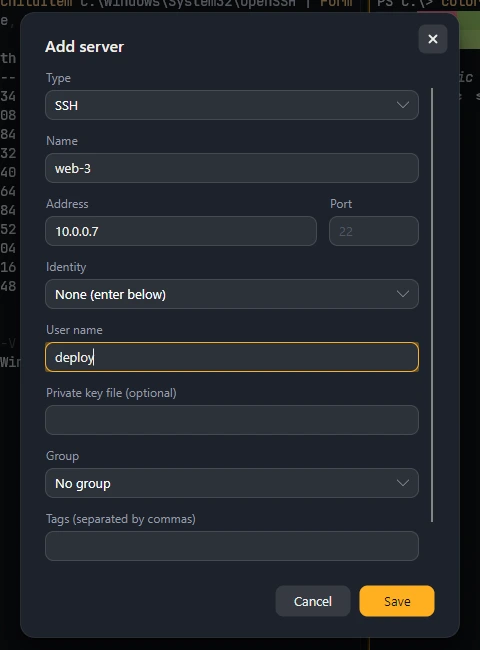
The Add server window: type SSH, a name, an address and port, an identity from the keychain, a user name, an optional private key file, a group and tags.
Adding a server.

Many servers at once

When one server is not the unit you think in.

  • Drag a server onto a pane to open it beside what is already there, or open a whole group side by side in one tab.
  • Broadcast input: type once, reach every pane, with a clear warning while it is on.
  • Run a command on many servers and read exit codes and output in one table.
  • Workspaces: save the window's tabs and splits under a name, and open them again with one click.
  • Snippets for the commands you run often.
The command palette, listing Split right, Split down, Add server, Open selected side by side, Run a command on several servers, Import servers from OpenSSH, PuTTY, Ansible, CSV, DigitalOcean and AWS, and the workspace commands.
The command palette.
One tab with four terminals. A red bar reads: Broadcast is on, what you type goes to 4 panes at once. The same command has run in all four.
Broadcast input, shown here with four local shells.

Files

Moving files is part of the same window, not another program.

  • A two-pane SFTP browser: this computer on one side, the server on the other.
  • A transfer queue with pause, resume, retry, speed and time remaining.
  • Interrupted transfers continue where they stopped, and a half-written file never replaces a good one.
  • Copy from one server straight to another.
  • Drag and drop of files and folders, and editing a remote file in place.
An illustration of the two-pane file browser and its queue, not a screenshot.

Sharing a terminal

Show someone your screen with a link and a password.

  • Whoever opens the link in their Elio and knows the password sees the same screen live, and can type into it if you allowed that.
  • It travels through the sync server: no port opened on your computer, and no account needed on either side.
  • The stream is encrypted from end to end with a key made from the password, so the server in between carries bytes it cannot read.
  • Sharing ends the moment you stop it.
How a shared terminal travels.

Sync

Your servers, groups, snippets and known host keys on every device. Passwords too, if you choose.

  • End-to-end encrypted with a key derived from your passphrase with Argon2id. A recovery key protects you from a forgotten passphrase.
  • No account needed: the first device starts sync with a password of your choosing.
  • Adding a device takes a code, not the password: type the one-time code the first device shows, or scan its QR code with a phone. It works once, for ten minutes.
  • Signed in with Localtonet, there is no code to type at all. That sign-in is optional.
  • Changes merge per item, so editing on two devices at once loses nothing.
  • The server is open source: run your own.
Adding a device. The code shown is an example.

Plugins and AI tools

Extend Elio in any language, and let your AI tools see your servers without seeing your secrets.

  • A plugin is any program that speaks a few JSON messages on its standard input and output.
  • It adds commands to the palette. When one runs it can type into the terminal, ask a question, show a note, copy text or open a web page.
  • Plugins never see passwords or keys.
  • Elio is also a Model Context Protocol server. Point an AI tool at elio --mcp and it can see the servers you have saved, without ever seeing a password or a key.
  • If you turn it on in Settings and on the server, it can also run commands over SSH, limited to servers you have already connected to yourself.
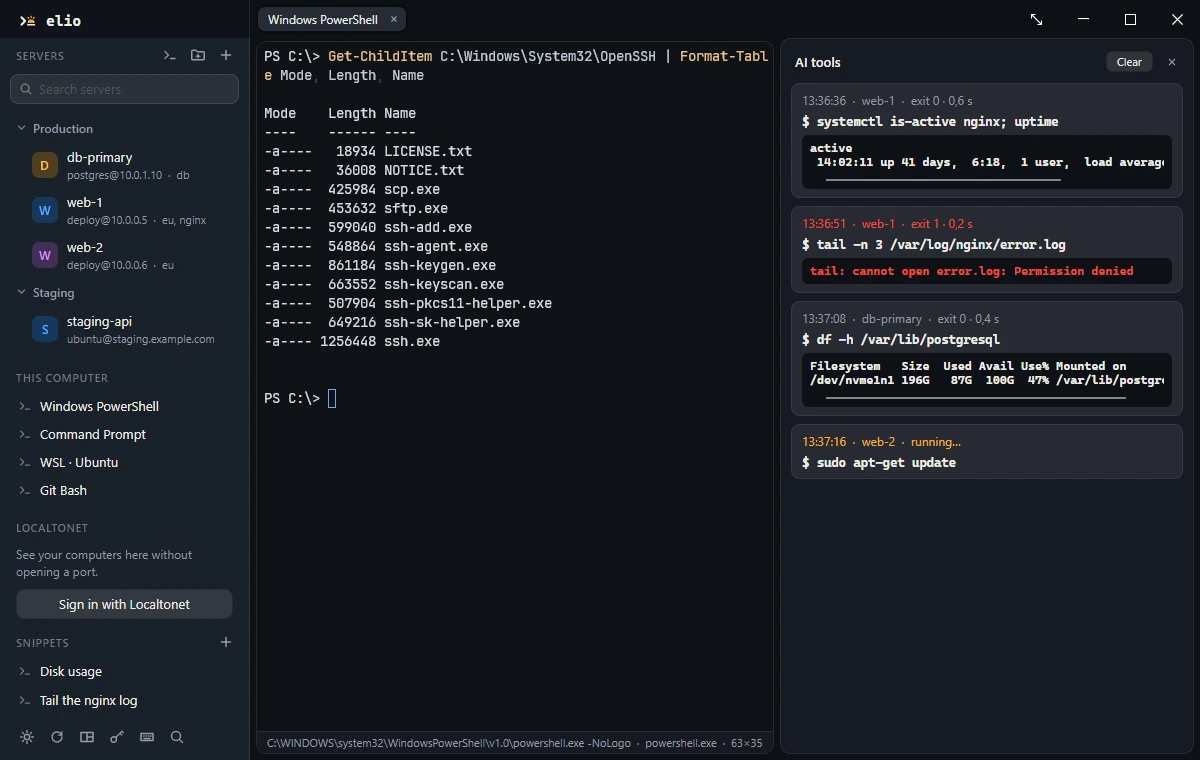
  • You see what it does: every command an AI tool runs appears in a column beside your terminals, with its exit code and what it printed.
plugin.json
{
  "name": "example",
  "description": "Types the date command into the terminal and says so.",
  "version": "1.0.0",
  "command": "python",
  "args": ["plugin.py"]
}
The command an AI tool starts
$ elio --mcp
The AI tools column beside a terminal: four commands with the time and the server, three of them with their exit code, duration and what they printed. One failed and is shown in red, and the last is still running.
What AI tools ran, and what it printed.

Languages and platforms

Twenty languages, five platforms, one app.

  • Elio follows the language of the operating system, and it can be changed in Settings.
  • On Android and iOS the layout is made for a small screen: the terminal fills it, the server list slides in from the side, and a row of keys above the keyboard adds Esc, Tab, Ctrl, Alt, the arrows and the symbols a shell needs.
  • On a phone Elio can be locked behind the device's fingerprint, face or passcode, and its camera reads the QR code that adds it to sync.
  • Portable mode: create a folder named data beside the program and Elio keeps everything in it.

The interface is available in

  • Arabic
  • Bengali
  • Chinese (Simplified)
  • Dutch
  • English
  • French
  • German
  • Hindi
  • Indonesian
  • Italian
  • Japanese
  • Korean
  • Persian
  • Polish
  • Portuguese
  • Russian
  • Spanish
  • Turkish
  • Ukrainian
  • Vietnamese

It runs on

  • Windows
  • macOS
  • Linux
  • iOS
  • Android

security

What Elio does with your secrets, plainly.

  • An encrypted vault

    Passwords and passphrases live in a vault encrypted with AES-GCM. Its key is kept by the operating system's own key store.

  • Windows Hello, if you want it

    On Windows the vault can also be put behind Windows Hello, so saved passwords are only used after a fingerprint, a face or a PIN.

  • Sync the server cannot read

    Sync is end-to-end encrypted. The server cannot read what it stores, and without the passphrase or the recovery key nobody can.

  • Host keys are pinned

    A server's key is pinned on first use. If it ever changes, Elio stops and asks before sending anything.

  • End to end to your devices

    Connections to Localtonet devices go end to end, and the device's key is checked against the one recorded when it was paired.

  • A sign-in that cannot open a shell

    The key Elio receives from Localtonet can only list devices and prove your identity to the sync server. It can be revoked from your Localtonet account at any time.

  • Shells need their own approval

    Opening a shell on a device takes that device's access key, or your approval in the browser. Access keys stay in the vault on your computer and can be revoked from each device's page.

  • AI tools on a short lead

    An AI tool never receives a password or a key. It can run commands only where you allowed it twice, in Settings and on the server, and every command it runs is shown in the window and written to a log.

  • No telemetry

    Elio does not report on you. Passwords and keys are never written to logs.

open source

Read it, build it, run your own.

Elio is licensed under the Apache License 2.0: the app, and the sync server with it.

Run your own sync server

The server stores only encrypted data in SQLite; the key that decrypts it never reaches it. From the repository root, build the image once:

Build
$ docker build -f server/Elio.SyncServer/Dockerfile -t elio-sync .

Then it is one command:

Run
$ docker run -d -p 8080:8080 -v elio-sync:/data -e Sync__PublicUrl=https://sync.example.com elio-sync

The container listens on plain HTTP on port 8080, so put a reverse proxy with HTTPS in front of it, then enter the server's address in Elio's Sync window. The repository's README lists every setting.

Build from source

Elio targets .NET 10. With the terminal engine built, the desktop app is one line:

Run the desktop app
$ dotnet run --project src/Elio.Desktop

The terminal engine, libghostty-vt, is built from source by build/native.sh, which pins every version and checks every download against its SHA-256. The README has the steps.

View source

download

Get Elio.

Every build is free. These links always lead to the newest release; all files and their checksums are on the releases page.

Prefer to build it yourself? Build from source.